Search a project
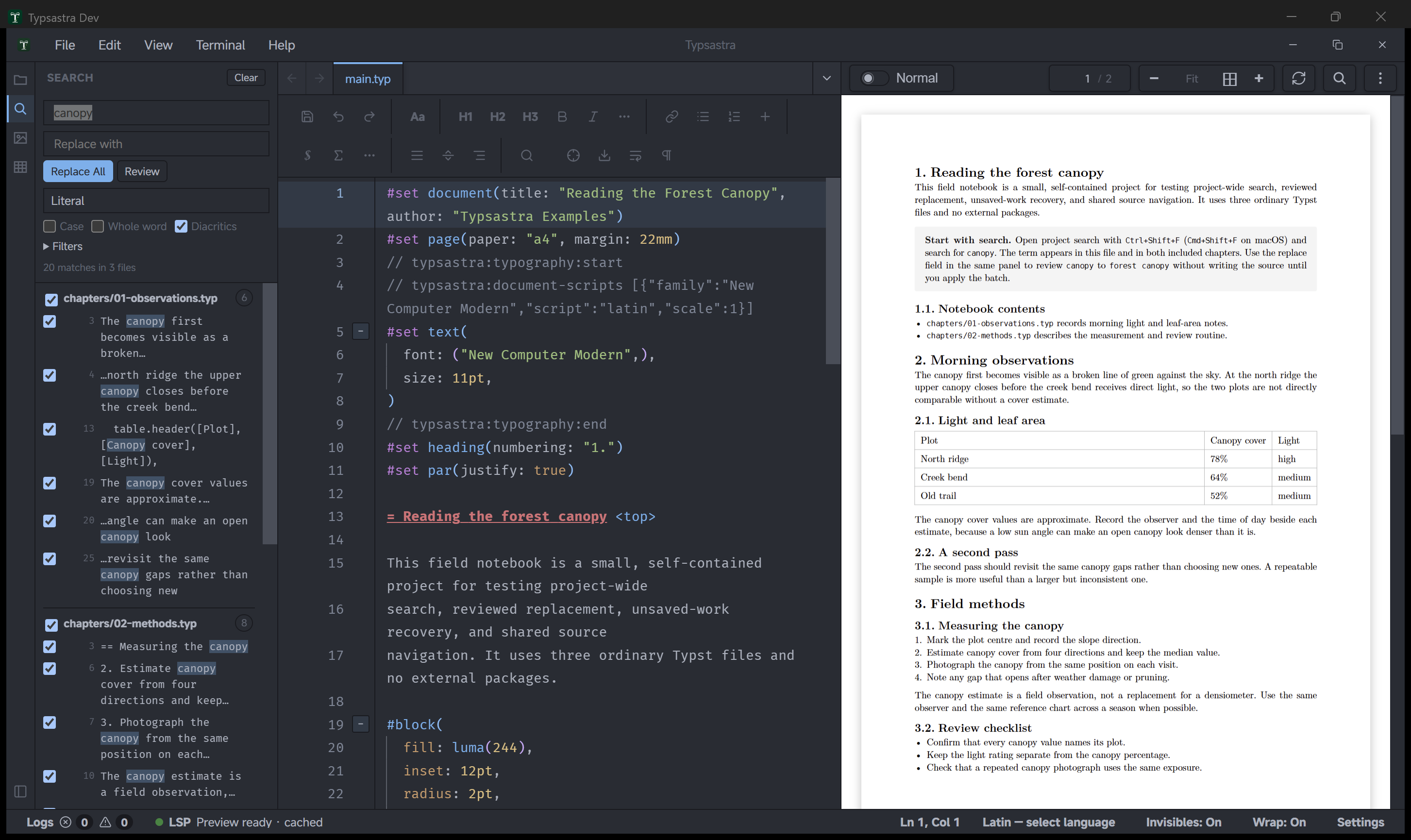
Project search finds text across the files in the current workspace without opening each file first. It uses unsaved editor buffers when a file is open and reads UTF-8 files from disk otherwise.
Open it from the magnifier in the activity bar, Edit → Search Project, or
Ctrl+Shift+F (Cmd+Shift+F on macOS). The Search panel replaces the sidebar
content; the editor and PDF preview stay visible. The bundled
07-editor-workflows/01-project-search-and-recovery example is a three-file
notebook designed for these exercises.
Search modes
- Literal searches for the text as entered. Match case, Whole word, and Diacritics use the same behavior as editor Find.
- Regex treats the query as a regular expression. Capture syntax and Unicode matching match editor Find. A single file whose expression takes longer than one second is stopped and the results are marked incomplete.
- Fuzzy ranks ordered subsequences in relative file paths and source lines. Path matches appear in their own section. Whole word, diacritics, and regex controls are disabled in this mode.
Filters
Main document only is enabled by default. It limits results to the pinned
main document, the .typ files reachable through its #include and #import
graph, and local text files it references, such as bibliography files. Clear the
option to search every eligible file in the workspace. If no main document is
pinned, Typsastra searches the whole project and explains that fallback in the
result status.
Use Filters to add comma- or newline-separated include and exclude globs:
Patterns without a slash apply to the file name. ** crosses directory
boundaries and * does not. Files ignored by .gitignore, binary files, files
larger than 10 MiB, and generated application data are skipped by default.
Enable Include ignored files to search ignored paths as well.
Results
Results are grouped by relative file path and show line numbers and highlighted excerpts. Select a content result to open its file and select the match without moving the PDF. Selecting a fuzzy path match opens the file without selecting a source range.
Queries run in a background worker after a short typing pause. Typsastra cancels work for an older query and shows at most 20,000 matches; the status line reports truncated or incomplete results. Changed files are checked before navigation. If a file changed since the result was produced, the search refreshes instead of applying stale offsets.
Replace across files
Literal and Regex searches can replace selected matches across the project. Open
the replace field with Edit → Replace in Project or Ctrl+Shift+H
(Cmd+Shift+H on macOS), or type a replacement directly in the Search sidebar.
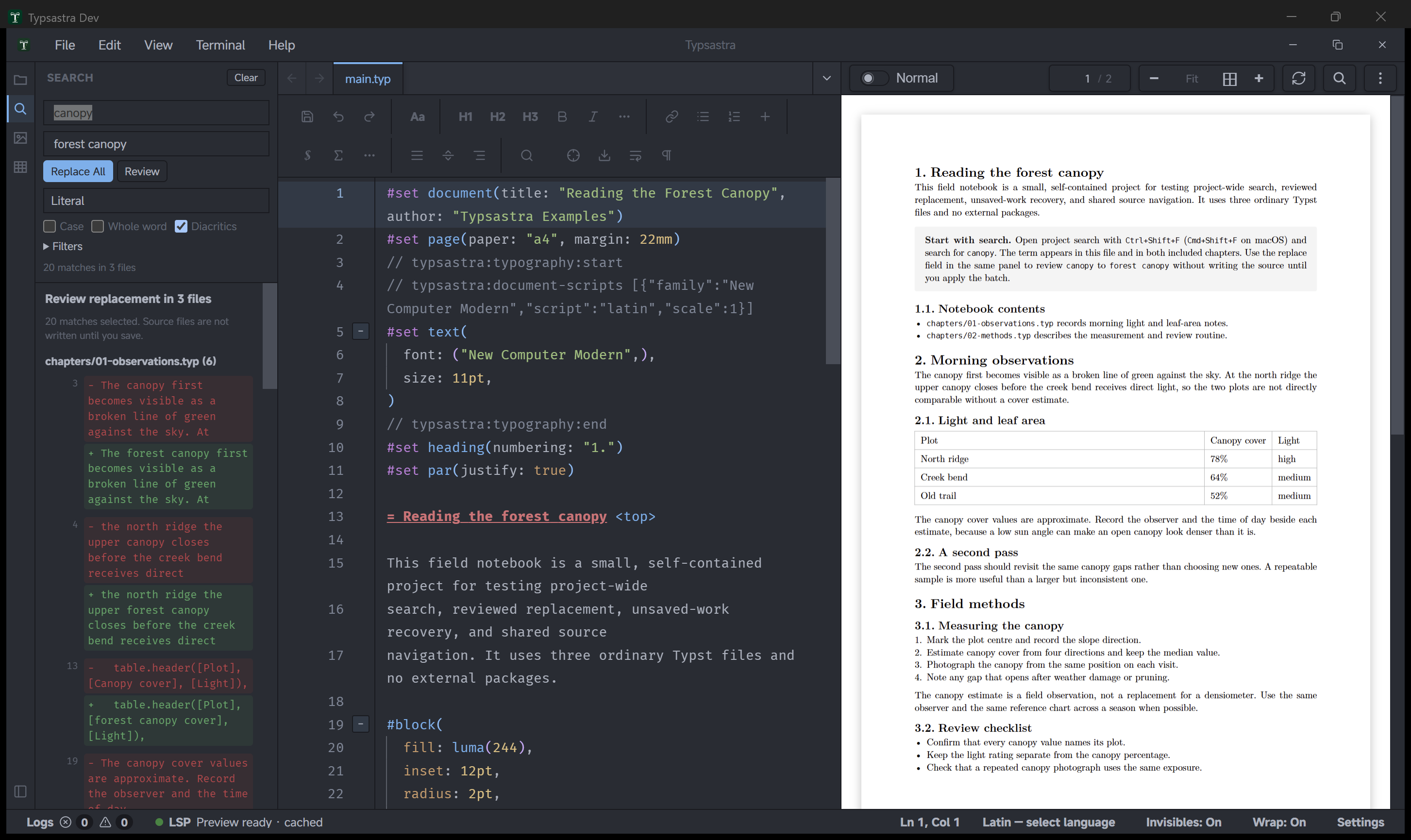
- Run a search and wait for it to finish. Replacement is unavailable while a search is still running, incomplete, truncated, or errored.
- Type the replacement text.
- Select Replace All to replace every safe match immediately and skip the review step.
- To replace only some matches, clear the checkbox beside any match you want to keep, use a file checkbox to include or exclude all safe matches in that file, then select Review. Inspect each changed line as a before/after pair and select Apply Replacement.
Typsastra applies one undoable edit per file and opens previously closed files as unsaved tabs. The source files are not written during replacement. Review the unsaved tabs and use normal Save or Auto-save when the changes are ready.
Matches that would split a grapheme cluster are marked non-replaceable and are skipped. If any selected file changed after the search, nothing is applied and the results refresh.
Use Undo Replace in the Search sidebar to restore every file from the latest replacement. The button appears after a replacement and is only offered while all affected buffers still match the batch output. Normal per-file Undo is always available; editing any affected buffer also disables the batch undo so it cannot overwrite newer work. With On-type preview, the batch produces one preview update after it completes rather than one update per file.
Limits and privacy
Project search stays inside the workspace. It does not search generated app caches, project archives, binary files, or paths outside the workspace. Query and replacement text, results, and the latest undo batch are session-only; they are not written to project settings.