Getting started
Open a project
Launch Typsastra and choose Open Project, or select one of the five recent projects. Show All Recent Projects opens fuzzy search across up to 32 stored projects. A project is a directory containing ordinary Typst source and assets.
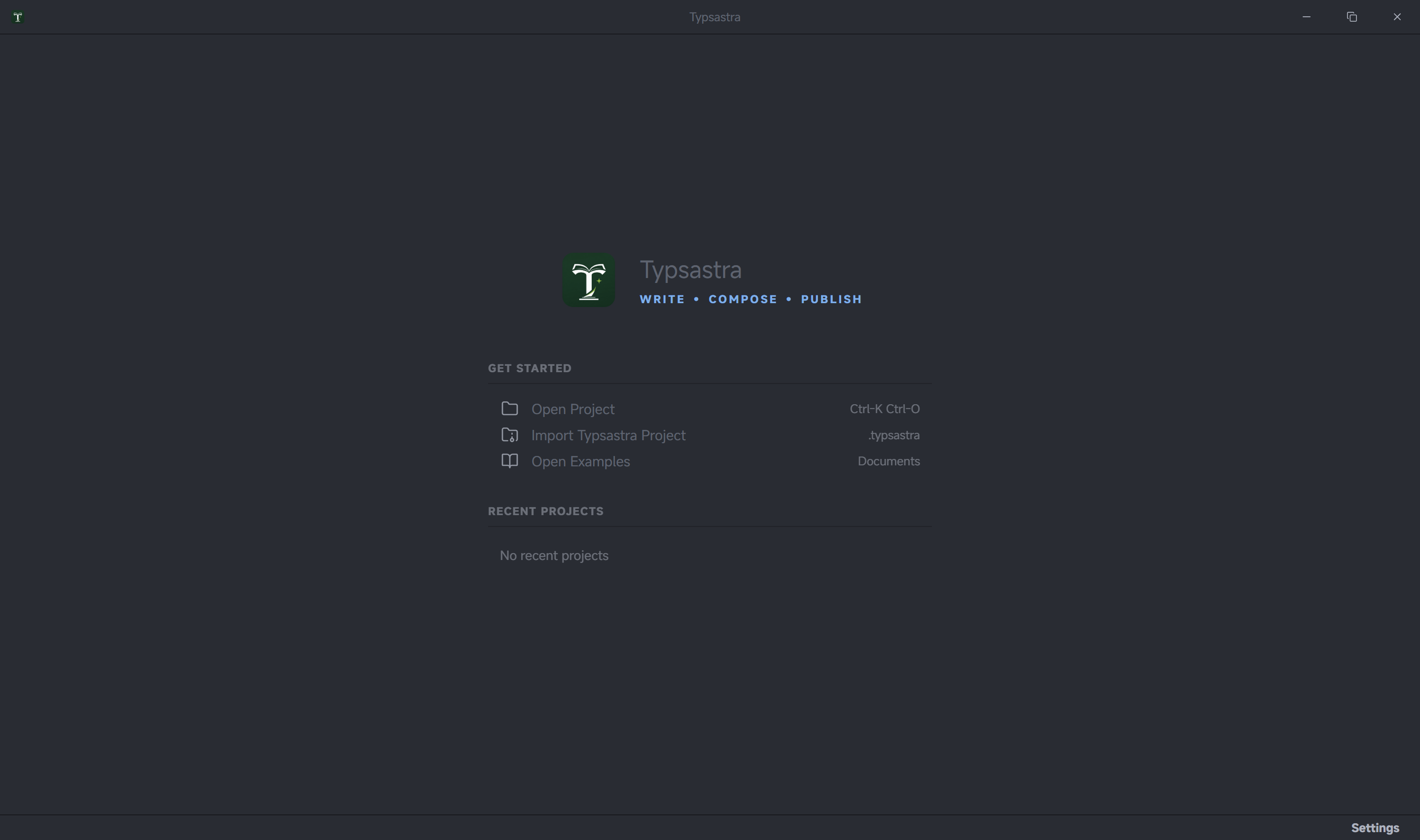
To learn without changing your own files, choose Open Examples. Typsastra
installs writable copies in a versioned Documents folder such as
Typsastra Examples v0.7.0 and opens START-HERE.typ. Every release uses a new
folder, so upgrading never overwrites or silently reuses an older example copy.
To follow the documentation walkthroughs, open the repository's
demo-project. It contains a main file, included
chapters, local images, and a table anchor for the Table Tools tutorial.
Choose the main document
Right-click a .typ file in Explorer or its editor tab and choose Set as Main
File. The action is unavailable for other file types. Included chapters keep
the configured main document's complete preview when opened.
Edit and preview
Typsastra manages Tinymist, so a separate Typst installation is normally not required. PDF compilation is asynchronous; the workspace UI becomes ready before the first preview finishes. Choose On type for debounced PDF updates while editing a short document, or On save to reduce background work for a long or resource-intensive document. This choice is stored in the current workspace, so opening another project restores that project's own preview mode.
Use the preview page field to jump to a page. Use Reveal Cursor in Preview
or Alt+Enter (Option+Enter on macOS) for manual forward sync. Double-click
supported preview content for inverse sync.
For an image-heavy document, switch the preview toolbar from Normal to Draft. Typsastra replaces supported raster-image calls only in its private render mirror, preserving the source and original images for PDF export. Hover a placeholder to inspect a cached thumbnail, original dimensions, and encoded source size. Image warnings remain recommendations: Typsastra identifies expensive assets but never resizes or re-encodes them automatically.
Try the bundled 06-v0.6-feature-showcase examples for Draft Preview, image
guidance, preview links, manual synchronization, and private local fonts.
The 07-v0.7-feature-showcase section adds a Markdown live-preview fixture and
an Image Tools walkthrough using those bundled raster assets.
Save and export
Save with Ctrl+S or Cmd+S. Export a PDF for the current preview target from
the application command. Project export is different: a .typsastra archive
packages portable project source and metadata but excludes fonts, caches, and
generated PDFs.
Next: Projects and main files.