Image Tools
Image Tools provides an explicit workspace for inspecting and optimizing local raster assets without silently modifying the source project.
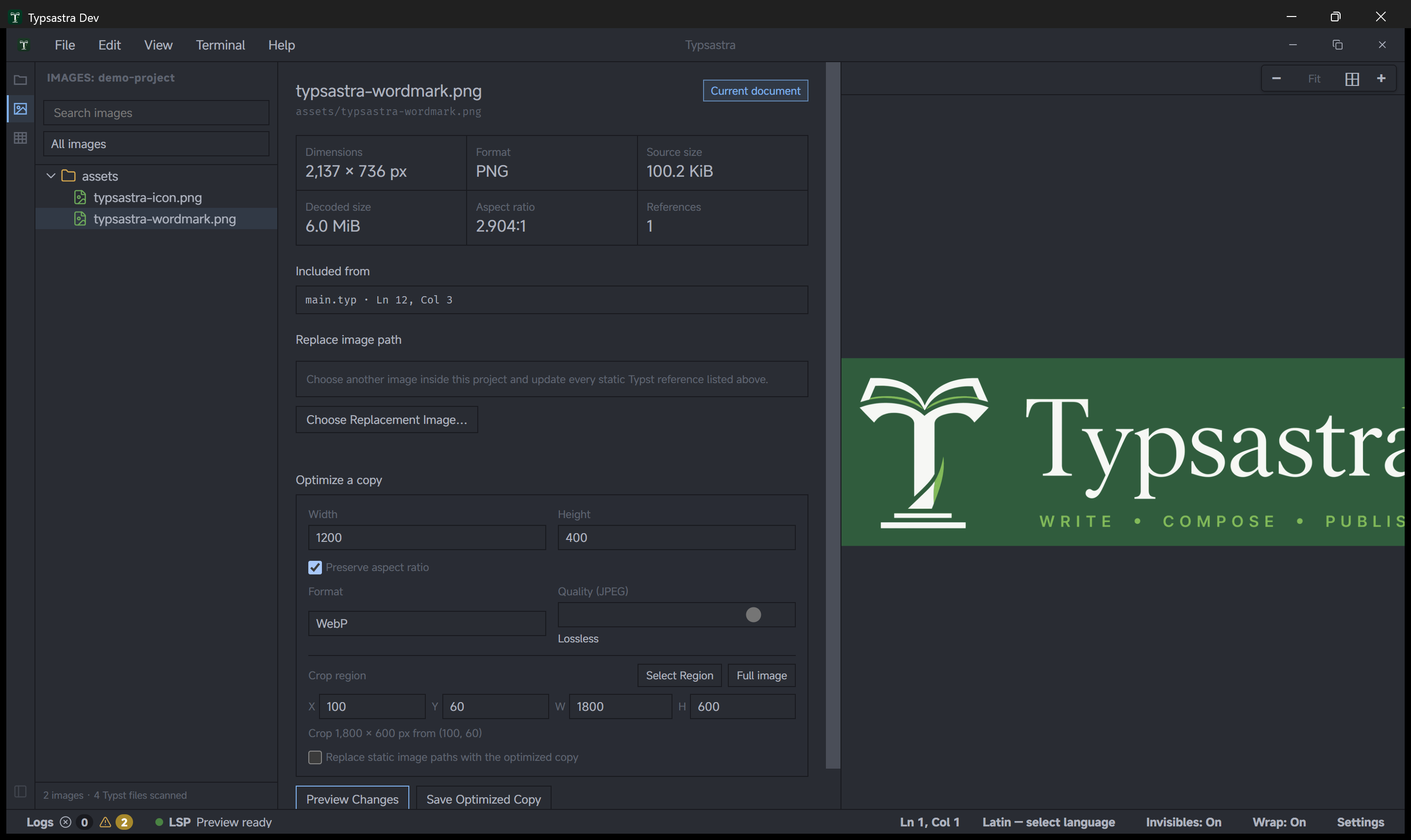
Open a workspace, select Image Tools from the sidebar, and choose an image. The sidebar can filter all images, images used by the current document, referenced or unused images, and images whose encoded or decoded size exceeds the recommendation thresholds.
Inspect and optimize
The inspector reports dimensions, format, encoded size, estimated decoded size,
and statically discovered #image references. PNG, JPEG, and WebP assets can be
resized or re-encoded; animated GIFs remain inspection-only.
- Choose target dimensions and keep the aspect-ratio lock enabled unless a deliberate stretch is required.
- Choose PNG, JPEG, or WebP. JPEG exposes a quality control; PNG and WebP use the currently supported lossless encoding path.
- Select Preview Changes to generate a bounded comparison in Typsastra's machine-local application-data cache and review encoded and decoded size estimates.
- Select Save Optimized Copy and choose a destination.
- Optionally enable replacement of indexed static Typst paths with the saved copy.
The original image is not overwritten automatically. Reference updates apply to all indexed exact static references for that asset; v0.7.0 does not offer a single-reference-only rewrite. Dynamic paths, package resources, remote assets, plugins, and unresolved expressions are not rewritten.
Renaming an image through the project explorer updates its indexed static Typst paths. The replacement-image action can likewise point those static references at another existing project image. Review source control or backups before large reference changes.
Image inspection uses bounded cached previews in both the editor image viewer and Image Tools. Once prepared, the same bounded result can be reused instead of decoding a pathological source image again. Reopening a project restores the active image only after its preview source is ready, so an old image is not mistaken for the selected asset while loading.
Use the documentation demo-project or the bundled
06-v0.6-feature-showcase/01-draft-preview-and-image-guidance project to
exercise Image Tools with local raster files. Draft Preview remains
a separate source-preserving preview mode and never exports placeholders.