Document typography
Why use it?
A normal Typst fallback stack applies the same size to every font:
This creates two practical problems:
- fonts for different scripts may look mismatched at the same point size;
- a font listed first may contain another script and prevent that script's intended font from being used.
Typsastra preserves the familiar fallback stack without rewriting document content.
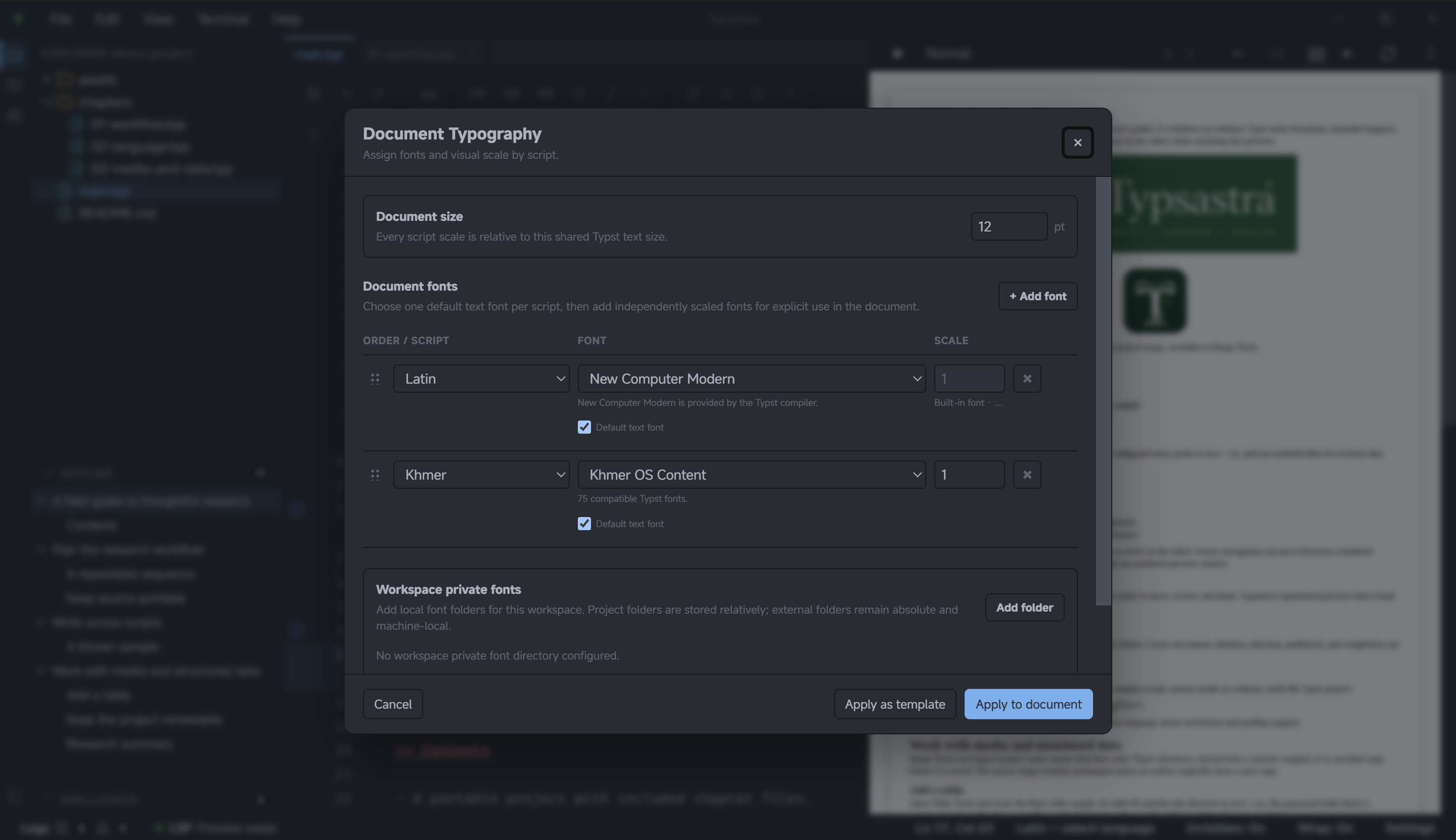
Configure script fonts
- Open Document Typography from the
Aatoolbar button. - Set the shared document size.
- Add each script used by the document.
- Choose its installed font and adjust its scale if necessary.
- Drag the script rows into priority order. With the drag handle focused, Up and Down Arrow provide the same operation from the keyboard.
- Choose Apply to document, or Apply as template for shared project typography.
To prepare another font for the same script, choose Add font, select that script and family, then clear Default text font. The row becomes Prepared font only: Typsastra scales and activates the family but does not add it to the default fallback stack. You can call it directly anywhere in the document:
Only one row per script owns default text. Prepared-only fonts can each use their own scale. Language tools are configured independently from the language item in the status bar.
For example:
Typsastra generates an ordinary ordered fallback:
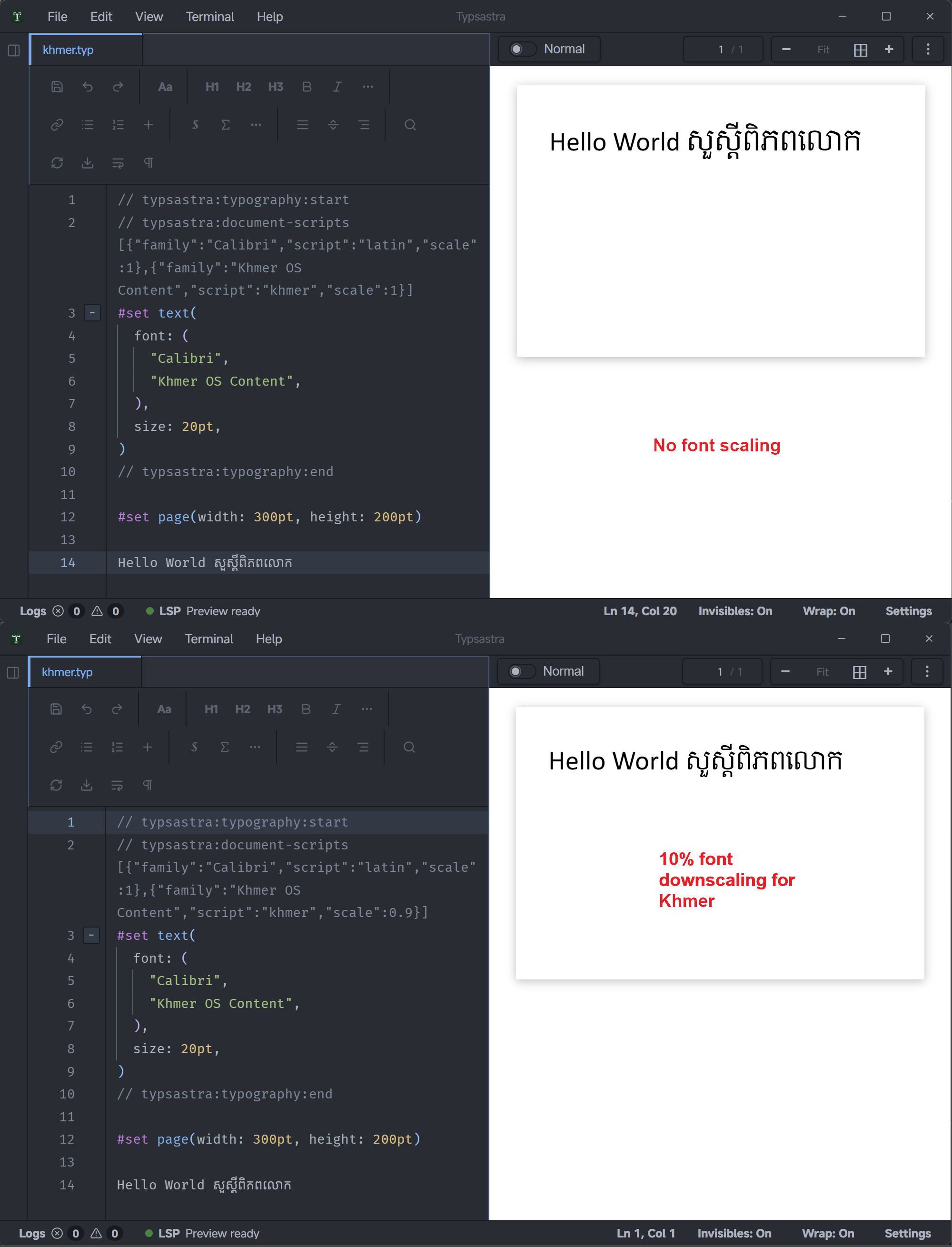
For mixed Khmer and English, neither ordinary order can guarantee both desired fonts:
("MiSans Latin", "MiSans Khmer")preserves the Latin font, but Western digits and shared punctuation normally come from the Latin family.("MiSans Khmer", "MiSans Latin")gives those shared characters to the Khmer family, but many Khmer fonts also contain Latin glyphs. Embedded English may therefore use the Khmer family without ever reaching MiSans Latin.
For v0.6, choose the order that best matches the dominant typography. Strict script-font enforcement is not enabled because shared digits, punctuation, inherited marks, and fonts with overlapping glyph coverage require a clearer authoring model. Typsastra may explore that model in a later release.
Typsastra asks for confirmation before generating a scaled font. Generated
variants live only in Typsastra's private global application-data cache, where
they can be reused by other projects. No font data or cache path is written
into .typsastra or included in project exports.
Use a font without installing it
If a font must remain private or should not be installed into the operating system, open Settings → Editor → Private local font directories and add the folder containing it. Typsastra validates the folder before saving it and rejects family names that collide with an existing system or private font.
Document Typography lists families in this order:
- Typst built-in
- Private local
- System fonts
The Settings directory is global and machine-local. For a font used by one
project, Document Typography also offers Workspace private fonts. Folders
inside the workspace are stored relatively; external folders remain absolute
and local to that computer. These workspace entries are written only to ignored
.typsastra/local.json, never to an archive or project export.
Typsastra passes both kinds of directory to diagnostics, live preview, source
synchronization, and PDF export, but does not load those fonts into the source
editor. It also never copies the original font files into .typsastra or a
project export. A recipient therefore needs the same font dependency installed
or configured on their own machine.
Typsastra recommends no more than 10 cached scale variants per font face and asks before creating another. Open Settings → Storage → Scaled-font cache to inspect variants, renew an entry, remove selected entries, or remove unused entries. Typsastra does not delete cached variants automatically.
Keep script scales between 0.90× and 1.10× when possible. Typsastra warns
before applying a larger adjustment because this control is for fine optical
balancing, not for doubling the font size. Results beyond ±10% vary between
fonts and may not be represented accurately.
PDF limitation: Non-
1.0scales are experimental. Typst may normalize a scaled font while creating a PDF subset, producing unscaled glyph outlines with scaled spacing. Typsastra does not post-process the PDF or make preview differ from export. Use1.0for dependable PDF output and inspect every exported PDF when testing another scale.
What this does not control
Script assignments do not change:
- the source editor's font;
- Typst
langordir; - Typst's
langordirbehavior.
Typography does not select spellcheck or word completion. Use Document
Languages from the status bar; its portable project assignments are stored in
.typsastra/config.json.
For implementation details and limitations, see
Document typography. Try
02-multilingual-writing/01-script-font-assignments.