Editor and PDF preview
The editor and preview work together around a project's configured main Typst document. The active editor tab can be the main file or an included chapter; the PDF preview remains the compiled main document.
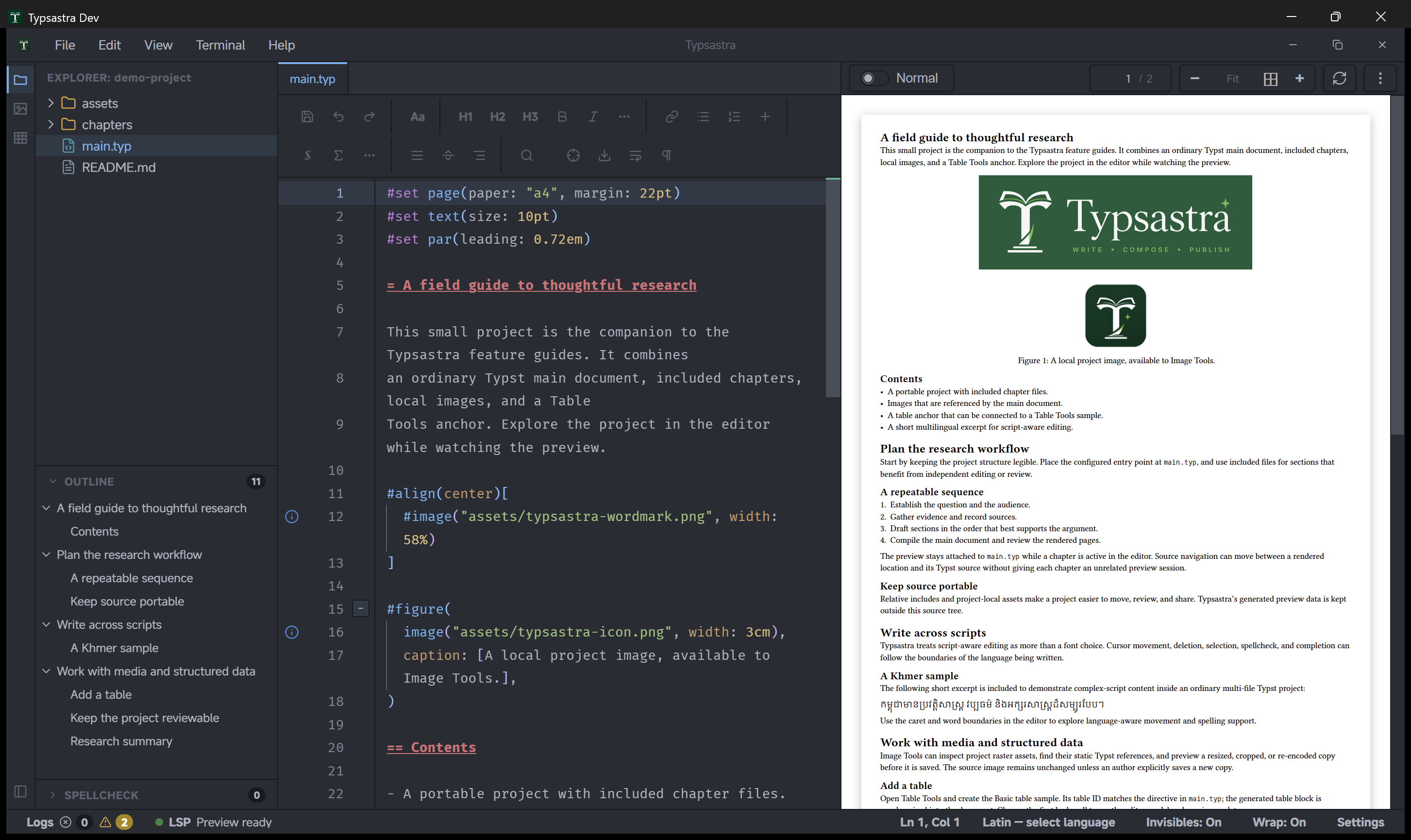
Work in the editor
Open a project folder and choose a Typst file from Explorer. The editor supports syntax highlighting, folding, search, formatting, configurable wrapping and gutter indicators, plus script-aware editing and language tools. Use tabs to move between the main file and included sources without creating separate compiler sessions.
The formatting/typography toolbar can be shown or hidden. Settings control line numbers, active-line highlighting, indentation guides, bracket pairing, word wrap, spellcheck, and word completion. The current editor mode and file type are reflected in the status and toolbar.
Control the preview
- Choose On type for debounced preview updates during editing, or On save to compile after saving.
- Use the preview page field to jump directly to a page.
- Use the zoom controls to zoom in, zoom out, or fit the page/document to view.
- Choose Document, Dark, or experimental Inverted color mode from the preview menu or Settings. These modes change display only; exported PDFs retain the authored colors.
- Select Recompile to restart the current compiler session and refresh the preview after an unusual failure.
- Undock the preview to place it in a separate window. Its page position and color mode follow the document preview.
Source synchronization
Use Reveal Cursor in Preview or Alt+Enter (Option+Enter on macOS) for
forward synchronization. Double-click supported PDF content to inverse-sync to
its Typst source. Internal links and references become interactive while the
platform modifier key is held.
Long documents
When a Typst source or the aggregate main preview exceeds the large-document threshold, Typsastra asks before initializing the editor/compiler workload. Approving the main document also approves its included files for the current workspace session. See Long-document workflow.
Demonstration
Open docs/demo-project, select main.typ, and
follow its includes. Try the preview color and zoom controls, then switch to an
included chapter and confirm the PDF remains on the main document.